Tutorial
Click on thumbnailed images to enlarge
USE ADOBE IMAGEREADY!!!
Okay so basically im going to turn this
into this
Here we go!
Open up image ready and go to file>open > and choose your video and then something like this will pop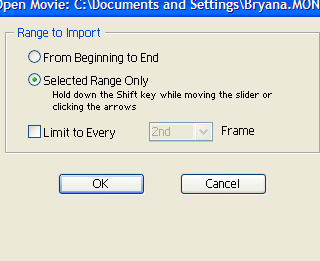 Check "Selected Range Only" and move the slider of the video to where you want the GIF to start then hold down shift and move it up until where you want it to end and press okay. Now you should have a little selected area like this: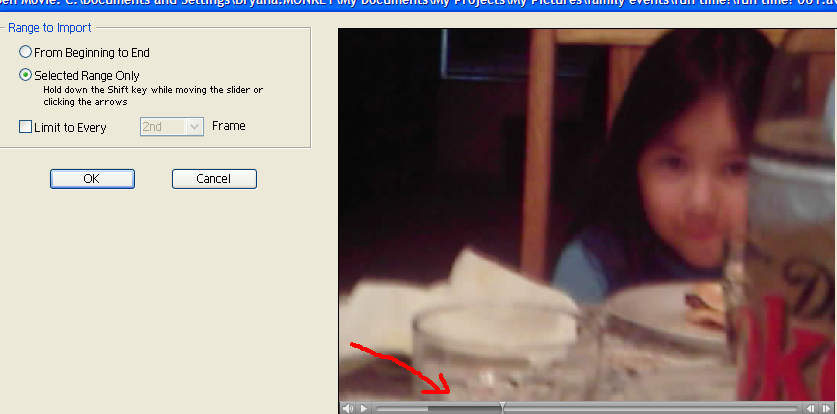
After press ok and then your GIF will open up, press play to watch it frame by frame and then resize it by going to Image>Image size> and input your new size. I chose 100x75 pixel and you can save it.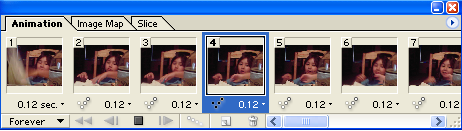
IMPORTANT!: To save go to file> SAVE OPTIMIZED AS> and name your file, if you do not save optimized as your image will not animate.My outcome, btw: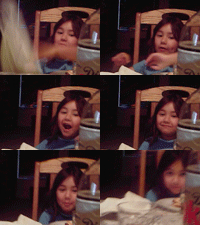
Okay so basically im going to turn this
into this
Here we go!
Open up image ready and go to file>open > and choose your video and then something like this will pop
Check "Selected Range Only" and move the slider of the video to where you want the GIF to start then hold down shift and move it up until where you want it to end and press okay. Now you should have a little selected area like this:After press ok and then your GIF will open up, press play to watch it frame by frame and then resize it by going to Image>Image size> and input your new size. I chose 100x75 pixel and you can save it.
IMPORTANT!: To save go to file> SAVE OPTIMIZED AS> and name your file, if you do not save optimized as your image will not animate.My outcome, btw:

Tutorial Details
| Author |
SaturdayRiot

|
| Submitted on | Jan 18, 2012 |
| Page views | 8,040 |
| Favorites | 6 |
| Comments | 2 |
| Reviewer |
manny-the-dino
|
| Approved on | Jan 23, 2012 |