Tutorial
Click on thumbnailed images to enlarge
BEFORE:

AFTER

1.first, open up your image.
2.duplicate your layer
layer>duplicate
3.With your duplicated layer, click Filter>Blur>Gaussian Blur
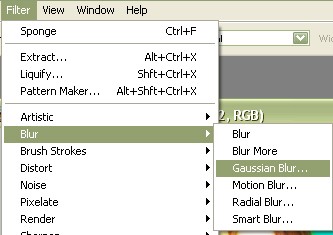
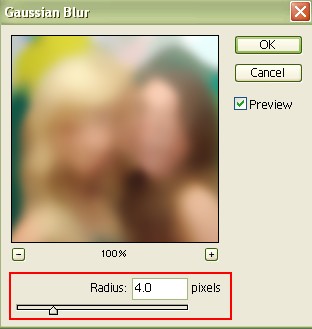
4.Set the Radius to 4.0 pixels, Then OK
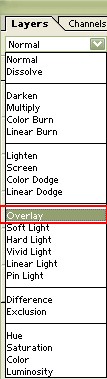
5.Then change 'Normal' to 'Overlay'
6.Duplicate the main original picture again
layer>duplicate
7.With the 2nd duplicated layer, click Filter>Noise>Dust & Scratches
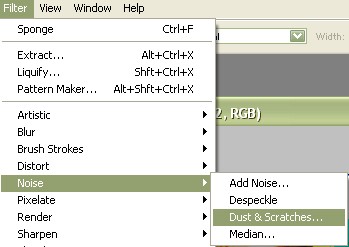

8.again, change 'Normal' to 'Overlay'
9.Create a new layer (Shift+Ctrl+N)
fill it up with the color white or the hex code FFFFFF
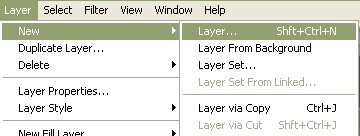
10.then change that layer from 'Normal' to 'Overlay'
you may lower the opacity if you feel its too bright.
I normally put the opacity and fill to around 50%
YOUR DONE! =)
any questions? just comment me.
AFTER
1.first, open up your image.
2.duplicate your layer
layer>duplicate
3.With your duplicated layer, click Filter>Blur>Gaussian Blur
4.Set the Radius to 4.0 pixels, Then OK
5.Then change 'Normal' to 'Overlay'
6.Duplicate the main original picture again
layer>duplicate
7.With the 2nd duplicated layer, click Filter>Noise>Dust & Scratches
8.again, change 'Normal' to 'Overlay'
9.Create a new layer (Shift+Ctrl+N)
fill it up with the color white or the hex code FFFFFF
10.then change that layer from 'Normal' to 'Overlay'
you may lower the opacity if you feel its too bright.
I normally put the opacity and fill to around 50%
YOUR DONE! =)
any questions? just comment me.
Tutorial Comments
Showing latest 10 of 20 comments

loooooooooooooooove it
By Love2RockGirl on Aug 23, 2009 3:16 am
loooooooooooooooove it
By Love2RockGirl on Aug 23, 2009 2:57 am

Kick bootayyy.
Lol, mucho pimp.
By Z0MGsz on Oct 29, 2008 3:13 am

awesome! i love it! :]
By yannitotz on Jul 22, 2008 6:42 am

thats really cute =]
By AutumnSky on Jun 13, 2008 12:33 pm

OMG THANK YOU
i LOVED iT
iT WHUSZ SiMPLE&EASY
By JUiCEYFRUiT on Jun 12, 2008 4:26 pm

i love this! its amazing
By skater8385 on May 24, 2008 2:54 am

Very awesome and simple. and yes, definitely bright! hahah. Love it!
By dotaquote on Apr 17, 2008 1:06 am

That's one BRIGHT tutorial. O_o
LOVE IT.
By LittleMissShibooyah on Mar 26, 2008 10:50 am

i love disz tutorial very hot... and i changed my ic to black nd white. and followed disz tutorial jusz experimenting with it and i love the outcome =]
By lilmiiszting on Mar 16, 2008 6:14 am
Tutorial Details
| Author |
brittneybx3

|
| Submitted on | Jan 6, 2008 |
| Page views | 43,584 |
| Favorites | 196 |
| Comments | 20 |
| Reviewer |
themarkster
|
| Approved on | Jan 6, 2008 |