Tutorial
Click on thumbnailed images to enlarge
first of all, you need photofiltre.
which is totally free!
click here, to download it!
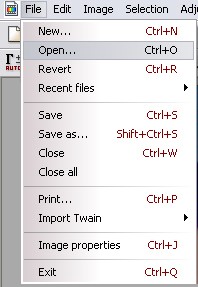
THEN click, file > open
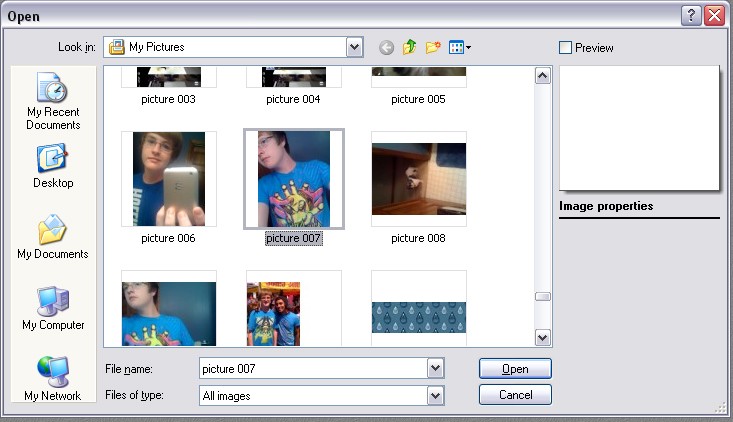
> select a picture [this is easy, but ill still add a picture!] mine is the high lighted one!
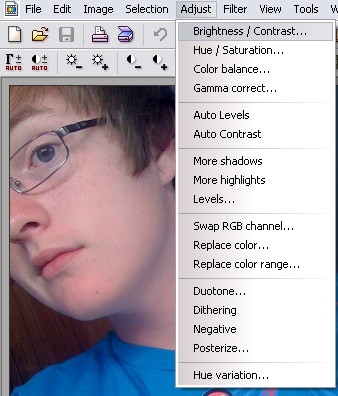
> then click adjust > Brightness and contrast!
> now make SURE you chage that drop down box to YELLOWS! and make brightness to 5% and contrast to 100% ! as seen in picture[below]
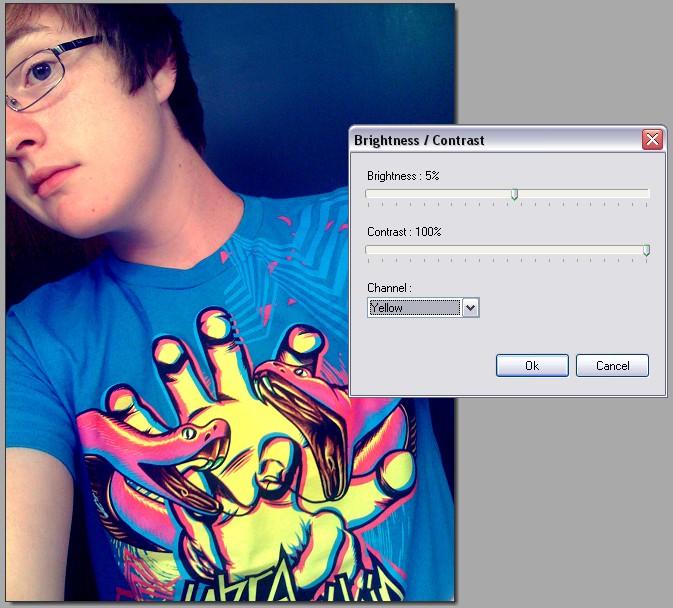
TADA! you're done! wasn't that simple?
which is totally free!
click here, to download it!
THEN click, file > open
> select a picture [this is easy, but ill still add a picture!] mine is the high lighted one!
> then click adjust > Brightness and contrast!
> now make SURE you chage that drop down box to YELLOWS! and make brightness to 5% and contrast to 100% ! as seen in picture[below]
TADA! you're done! wasn't that simple?
Tutorial Comments
Showing latest 10 of 10 comments

This is good! xD
By Mercyy on Apr 8, 2009 10:37 pm

this is awsome! your tottaly adorable X]
By Forsaken-vampiress on Mar 27, 2009 8:58 pm

i love your shirt
By Tomates on Jan 22, 2009 1:36 am

Noiceee =D
By SaturdayRiot on Sep 11, 2008 12:26 am

Thanks,!!!!
By dilligrout on Sep 4, 2008 7:02 am

thanks so much! freaking awesome.
By congenial-corpse on Sep 1, 2008 3:21 am

i like the quick steps.
By creole on Aug 30, 2008 9:55 pm

thank you!
By kimboxxkimi on Aug 24, 2008 6:47 pm

I love you! I was wondering, and I always hit saturation, then Gamma correction, lightness and all of that to somehow get near this weird looking but bright bold picture-And Vintage is rad, and I leanred!! yay!
By SceneRocket on Aug 22, 2008 8:32 pm

awesome! thanks for the tutorial.
By punkmimi on Aug 21, 2008 9:12 pm
Tutorial Details
| Author |
xXcalebboylesXx

|
| Submitted on | Aug 21, 2008 |
| Page views | 19,283 |
| Favorites | 55 |
| Comments | 10 |
| Reviewer |
manny-the-dino
|
| Approved on | Aug 21, 2008 |