
Tutorial
Click on thumbnailed images to enlarge
1. Open your image.
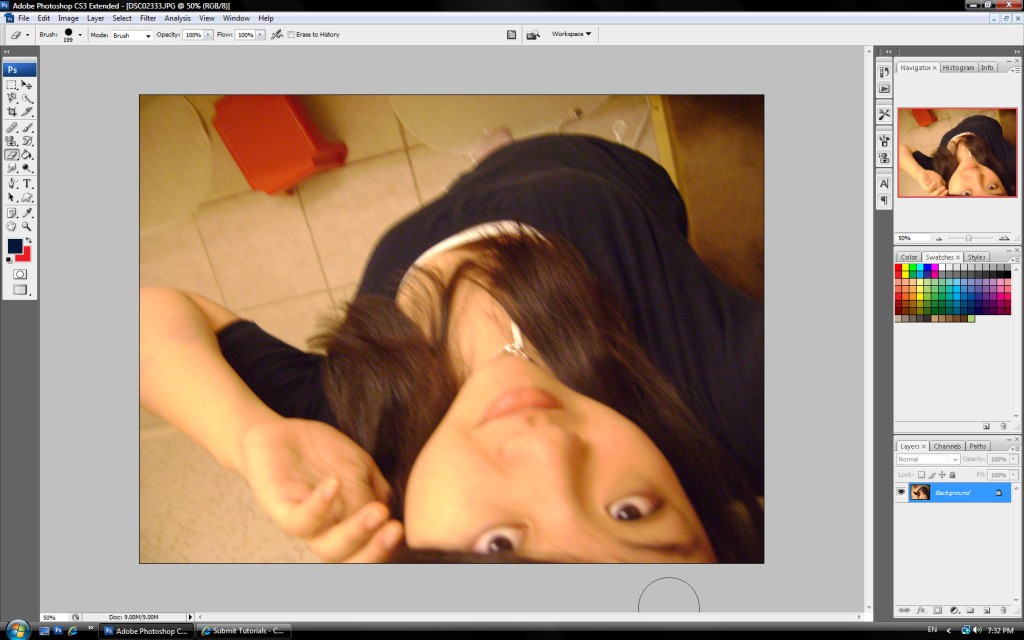
2. Duplicate your image (CTRL+J)
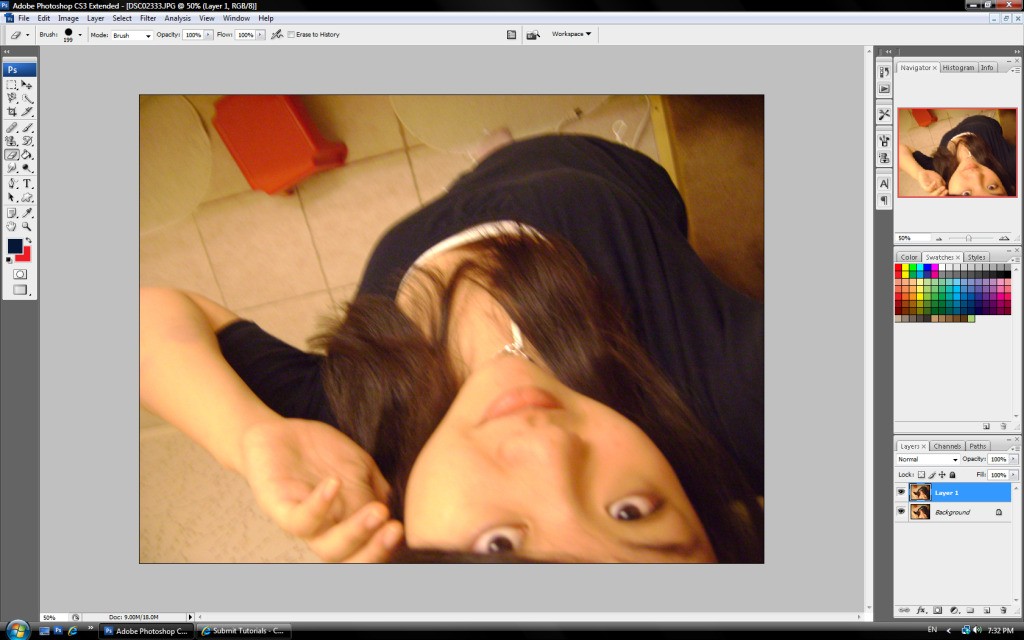
3. Go to the copy.
Filter > Blur > Gaussian Blur.
apply these settings:
Radius : 20
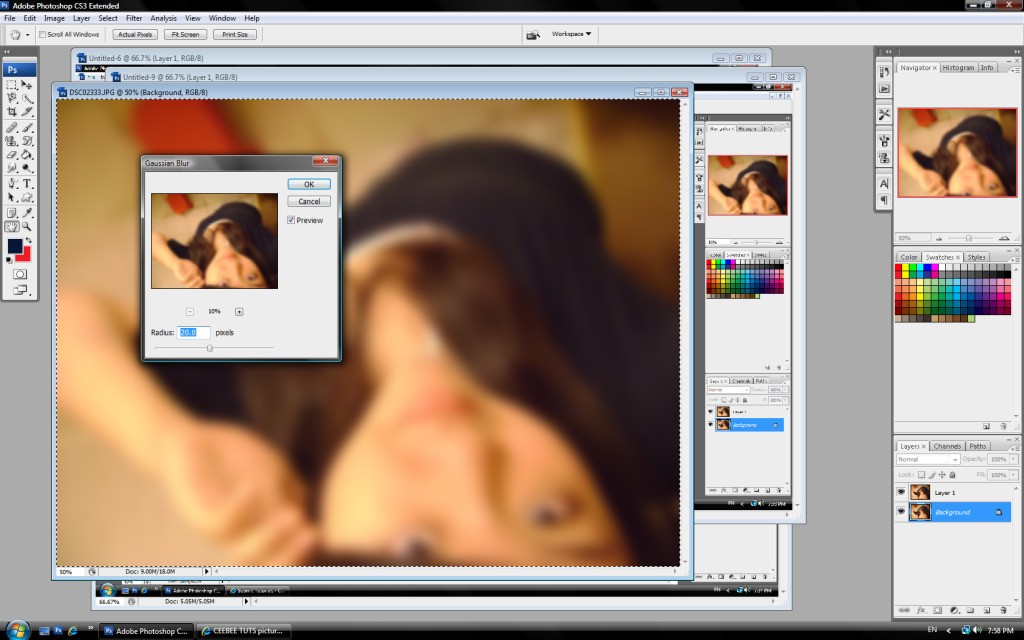
4. Go back to your original.
Grab your Quick Selection Tool (W).
Select the subject you want the focus to be on.
It doesn't have to be very precise; again, it'll vary with every image.
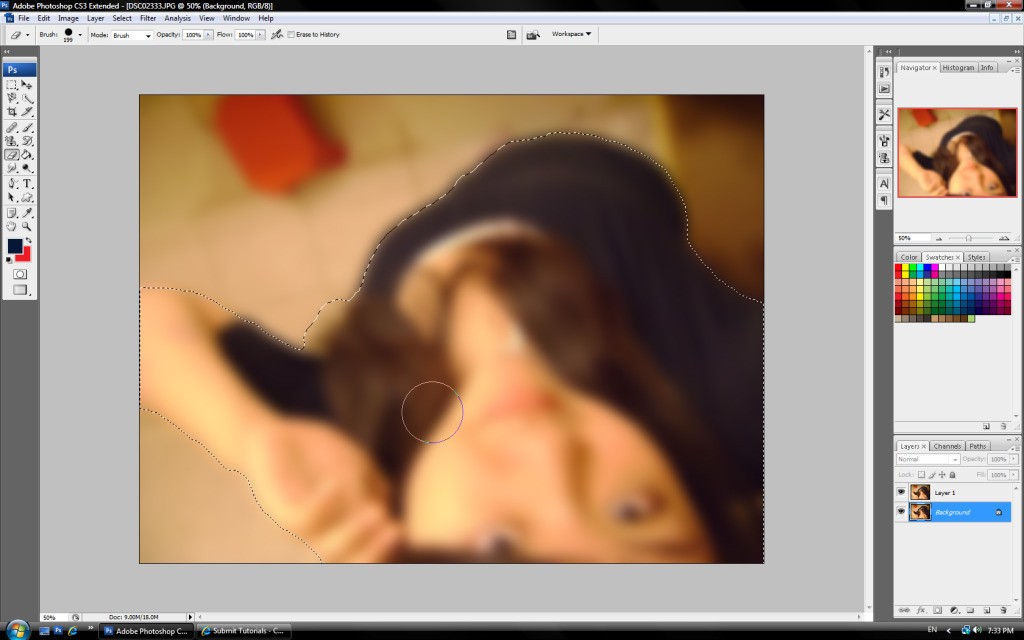
5. Go back to the copy.
6. Your subject should still be selected. Grab your Eraser Tool (E).
Erase inside your selection.
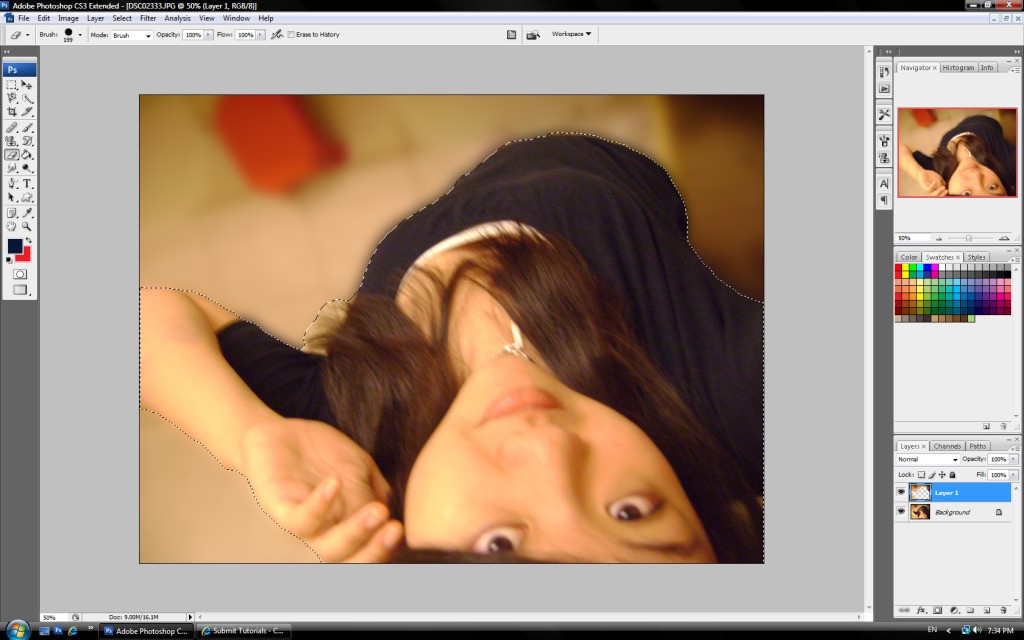
7. Sharpen your image a bit to give it that extra oomf, and - Ta-Da! You're finished.
2. Duplicate your image (CTRL+J)
3. Go to the copy.
Filter > Blur > Gaussian Blur.
apply these settings:
Radius : 20
4. Go back to your original.
Grab your Quick Selection Tool (W).
Select the subject you want the focus to be on.
It doesn't have to be very precise; again, it'll vary with every image.
5. Go back to the copy.
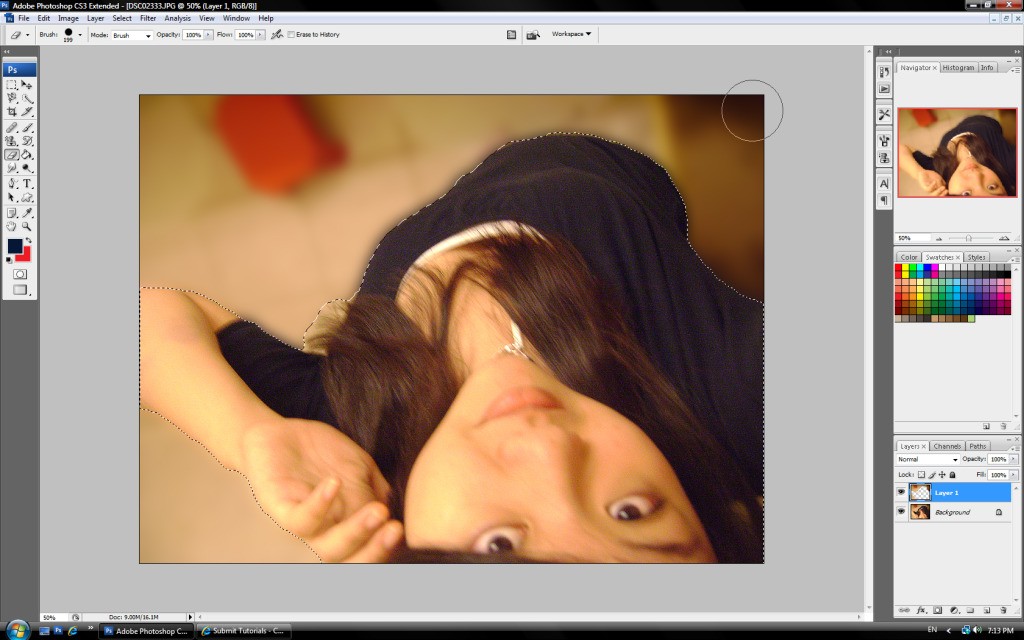
6. Your subject should still be selected. Grab your Eraser Tool (E).
Erase inside your selection.
7. Sharpen your image a bit to give it that extra oomf, and - Ta-Da! You're finished.
Tutorial Comments
Showing latest 8 of 8 comments

can you do this for gimp and let me know??
By brokenbeatbeauty on Dec 11, 2009 7:16 pm

sweet (:
By forgetit on Jun 12, 2009 6:49 pm
Woot, this helps lots, and its a great idea. Thank You
By KylieKARNIVORE on May 31, 2009 3:18 am

thats cutee ;D
By ieattelevision on May 27, 2009 11:37 pm

oopsies.
I lied.
7 easy steps.(:
By rawrlawlz on May 27, 2009 11:12 pm

ohhh me like it im ganna try it right now thansk!!
By classypinkbarbie on May 27, 2009 5:29 pm

this is pretty simple.
i shall use this one day.
=]
By daisyy-yupp on May 27, 2009 5:03 pm
Omg finally! I been looking for a tutorial like this forever!
By fallinsinner on May 27, 2009 6:21 am
Tutorial Details
| Author |
rawrlawlz

|
| Submitted on | May 27, 2009 |
| Page views | 11,554 |
| Favorites | 50 |
| Comments | 8 |
| Reviewer |
manny-the-dino
|
| Approved on | May 27, 2009 |