Tutorial
Click on thumbnailed images to enlarge
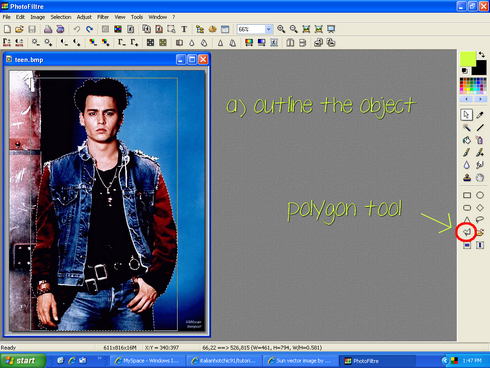
a) outline the object/person you want using the polygon tool. 
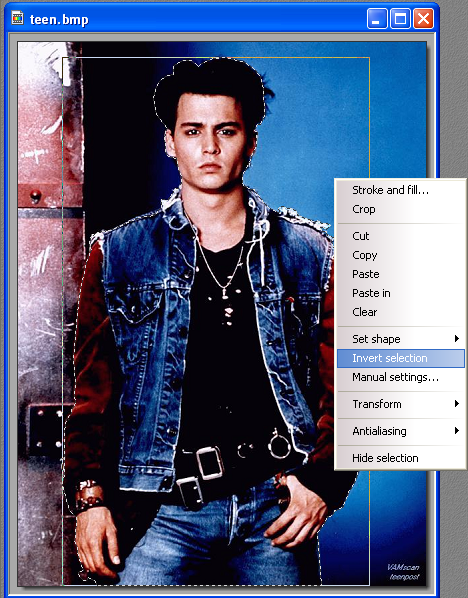
b) right click, and select invert selection
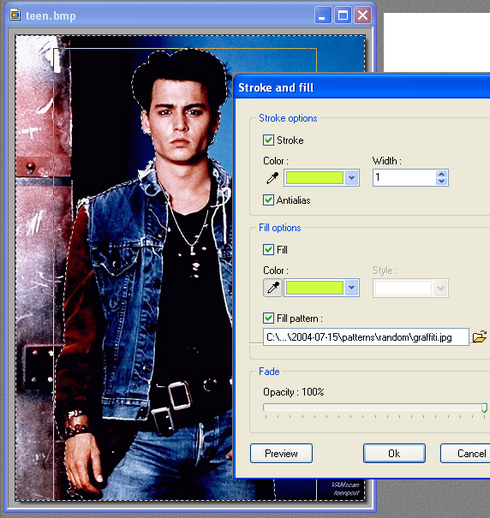
c) now, select edit > stroke and fill, OR CTRL + B
d) check fill, and check fill pattern (you can check stroke if you want, it adds a border)
example
e) find the pattern you want in whatever folder, and click ok
final product!

b) right click, and select invert selection
c) now, select edit > stroke and fill, OR CTRL + B
d) check fill, and check fill pattern (you can check stroke if you want, it adds a border)
example
e) find the pattern you want in whatever folder, and click ok
final product!
Tutorial Comments
Showing latest 9 of 9 comments

TYSM! i needed this! *_*
By paajnub on Sep 11, 2009 11:14 pm

thank you!!! that was soooo easy!!!!
By MickeyDesigns on Dec 26, 2008 6:23 pm

omg im sooo gonna try this!!
By GOOFZ on Aug 30, 2008 2:45 am

What is that font called?
[:
By RissyMel on Aug 10, 2008 6:53 pm

i randomly get backgrounds, from photobucket, from sites, and more. I made the text at an angle.
By radicallyradd on Aug 4, 2008 1:42 am
How did you put the text like that?
By Latish4 on Aug 3, 2008 8:08 am
THANKS!
By Latish4 on Aug 2, 2008 7:56 pm

where you get the backgrounds from?
By LexiFresh on Jul 28, 2008 2:28 pm

this is also nice
By kimboxxkimi on Jul 19, 2008 10:30 pm
Tutorial Details
| Author |
radicallyradd

|
| Submitted on | Jul 17, 2008 |
| Page views | 33,975 |
| Favorites | 63 |
| Comments | 9 |
| Reviewer |
Insurmountable
|
| Approved on | Jul 19, 2008 |