Tutorial
Click on thumbnailed images to enlarge
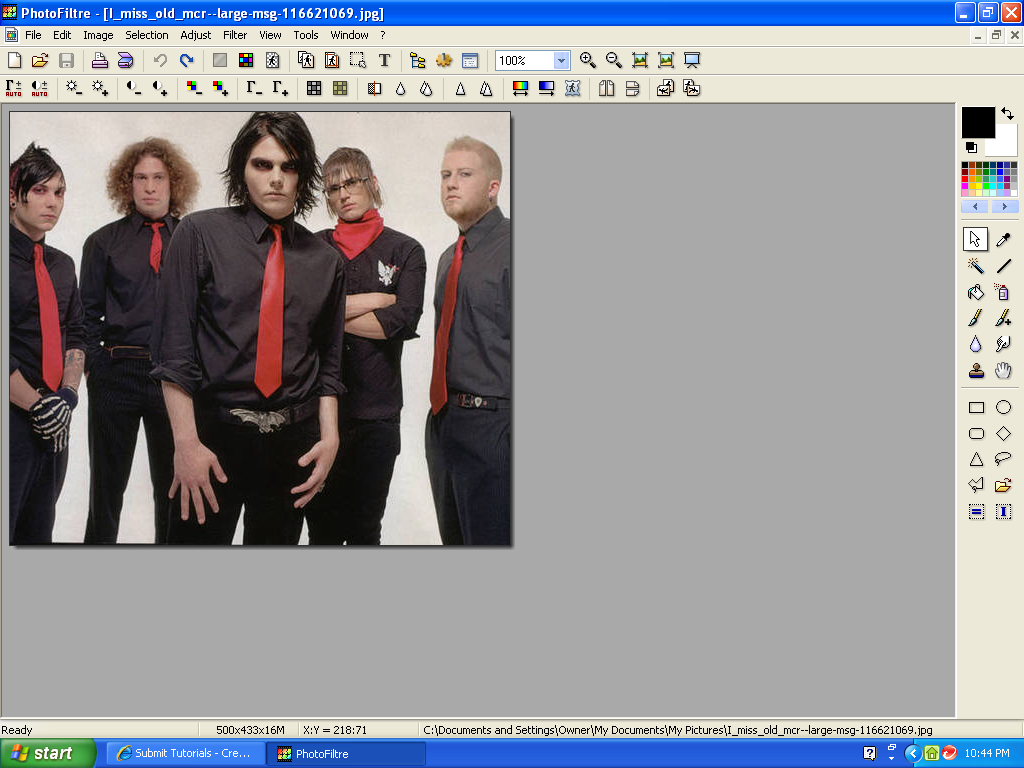
To start, bring up your photo. Like this,
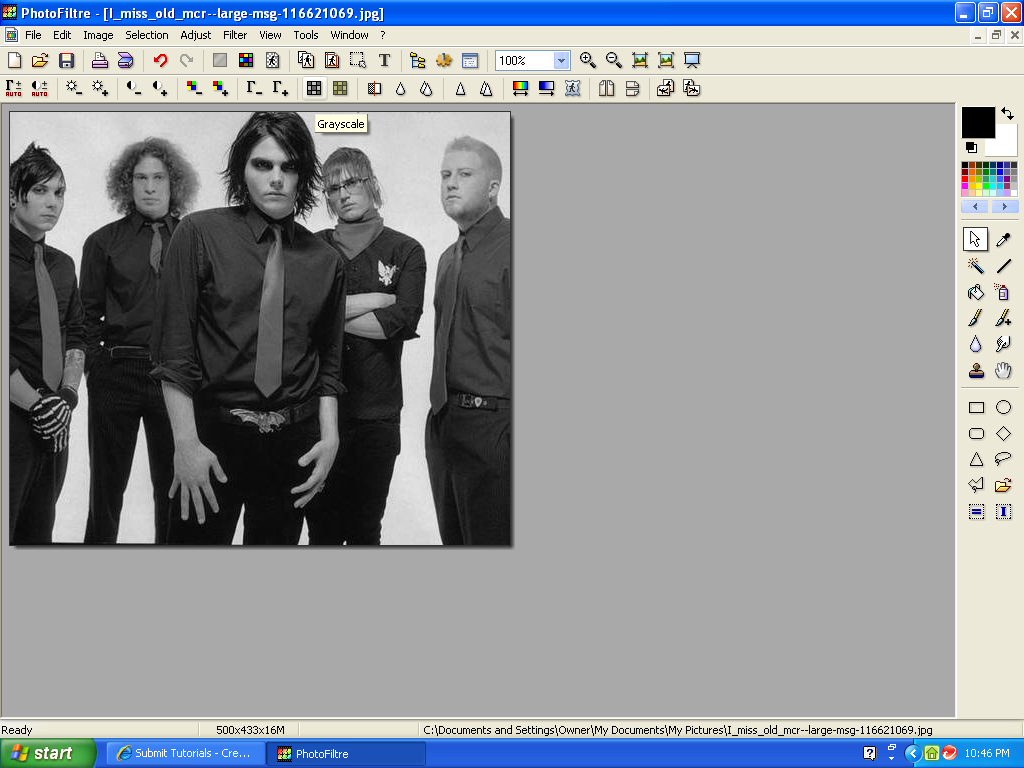
and then select grayscale to make your picture black and white. like this.
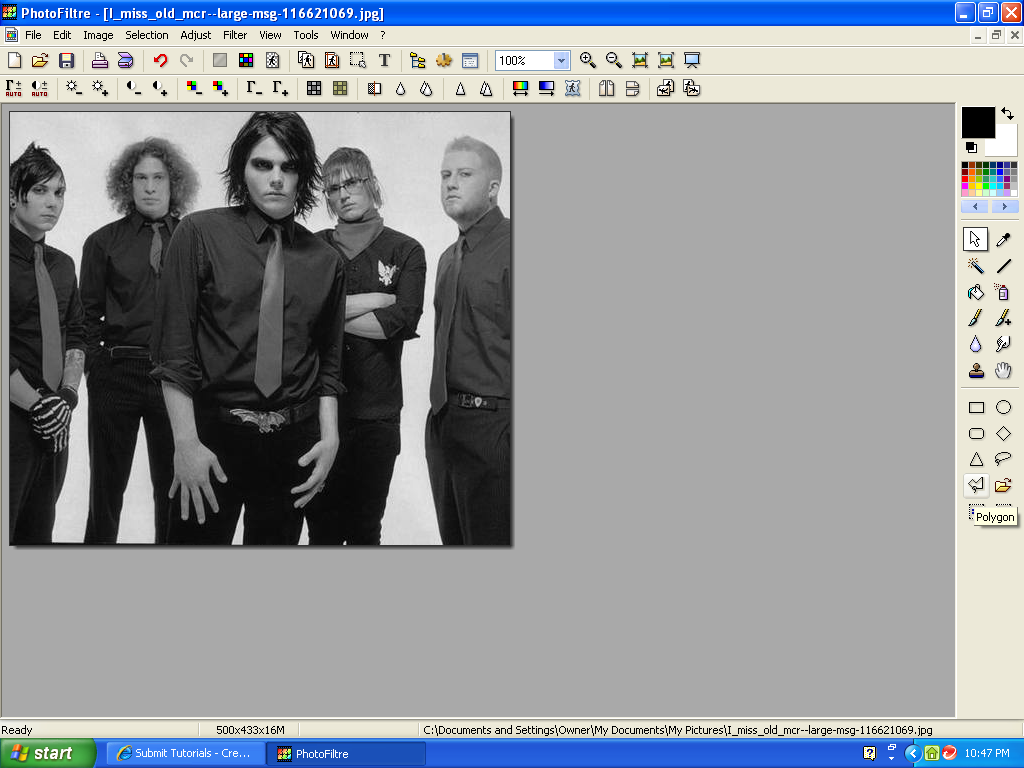
then select the polygon tool.
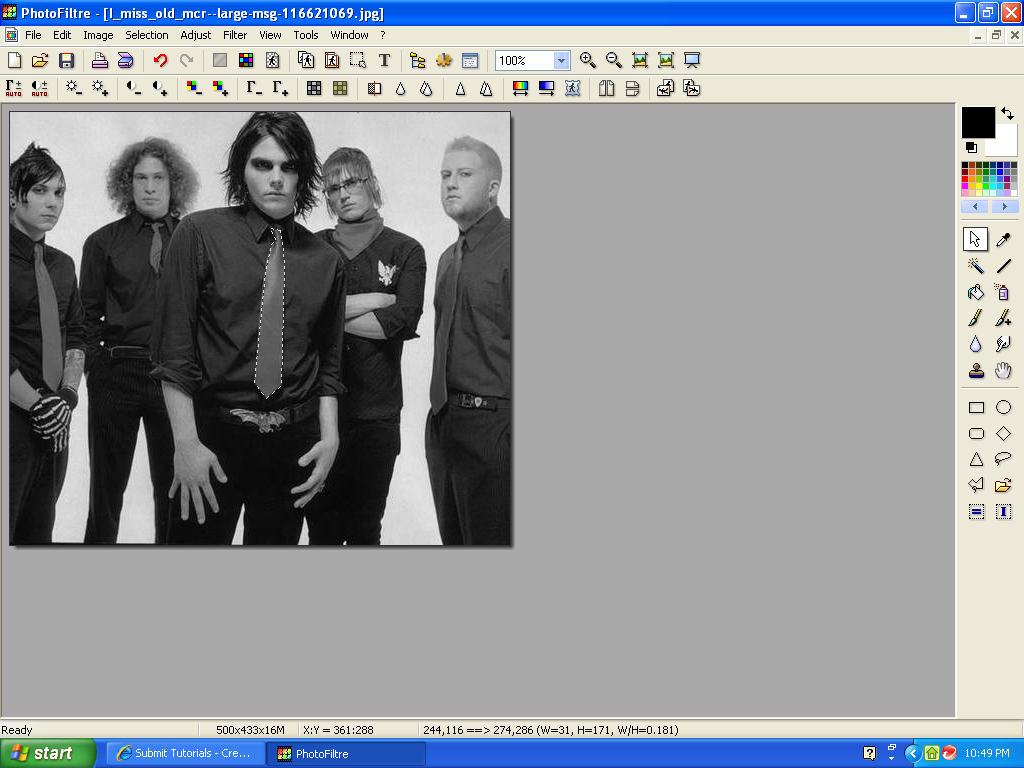
and then go around the object you wish to color, with the tool. like this.
then select you hue variation tool, like this
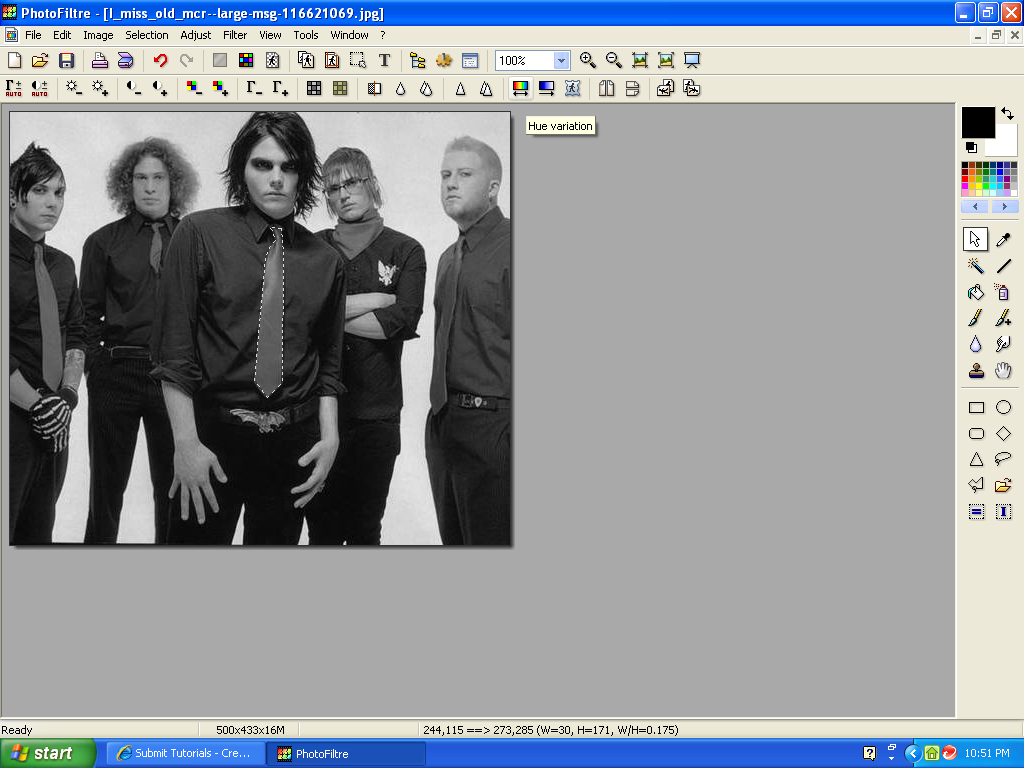
and pick the color that you would like to make your object. like this.
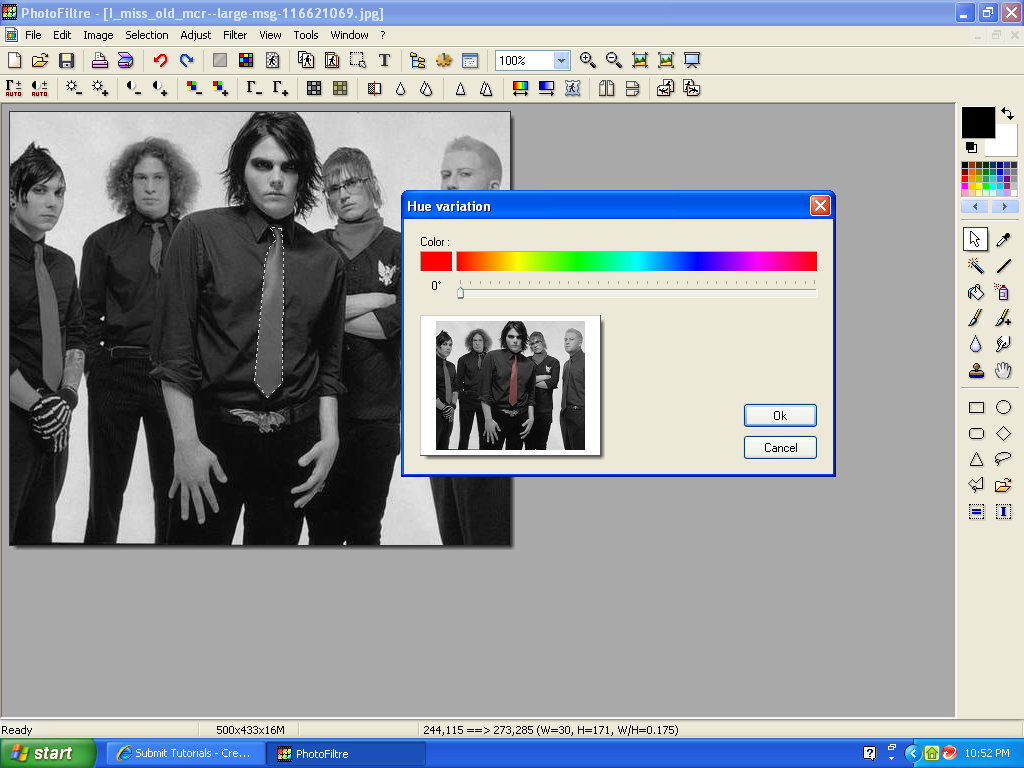
and you get this.
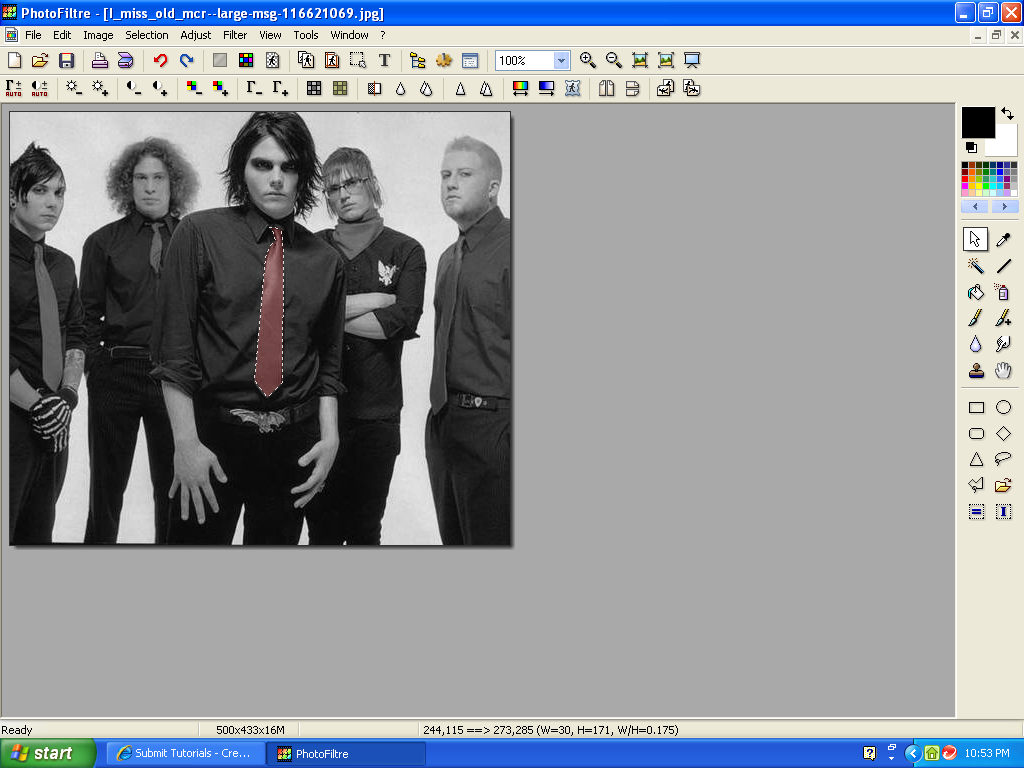
and then finally, you select your lasso tool to get rid of the line on your object. to get this.
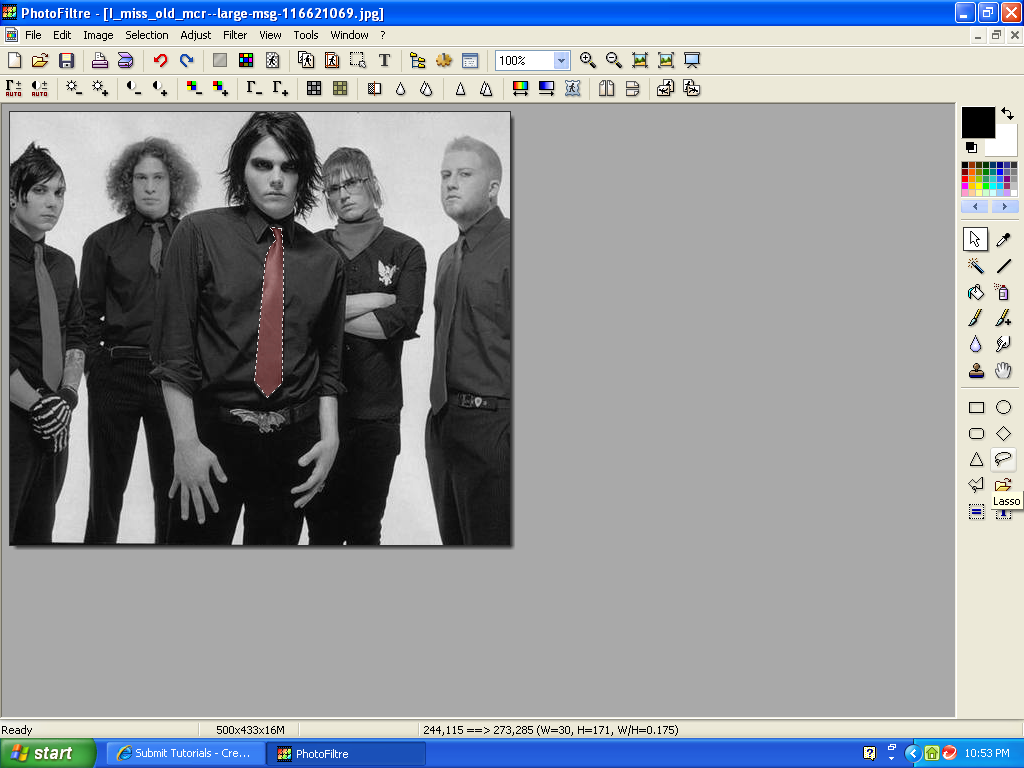
Hope this helped.
Good luck with your editing!
:)
and then select grayscale to make your picture black and white. like this.
then select the polygon tool.
and then go around the object you wish to color, with the tool. like this.
then select you hue variation tool, like this
and pick the color that you would like to make your object. like this.
and you get this.
and then finally, you select your lasso tool to get rid of the line on your object. to get this.
Hope this helped.
Good luck with your editing!
:)
Tutorial Comments
Showing latest 4 of 4 comments

You could just hit the polygon butto, highlight the tie, right click press invert selection, go to filter>color>creyscale, and boom you still have the red tie, while everything else is just black and white-thats the easier way to do it.
By SceneRocket on Aug 31, 2008 2:41 pm

Thanks!
By kaylerz028 on Aug 4, 2008 10:33 pm

nice
i knew how to do this already but this is awesome[:
By kimboxxkimi on Jul 8, 2008 7:14 am
THX!!!!!!!!!!
By aleysha on Jul 8, 2008 12:47 am
Tutorial Details
| Author |
mikeywayproject

|
| Submitted on | Jul 7, 2008 |
| Page views | 12,889 |
| Favorites | 28 |
| Comments | 4 |
| Reviewer |
manny-the-dino
|
| Approved on | Jul 7, 2008 |