Image Help, Blending,textures.image |
  |

 Aug 20 2008, 11:28 AM Aug 20 2008, 11:28 AM
Post
#1
|
|
|
Senior Member  Group: Member Posts: 87 Joined: Jul 2008 Member No: 670,997  |
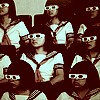
[color="#FF00FF"][/color]Heyy I Found this pic & i really wanted too know how too do it because it is so amazing i have no idea i can guess the stuff but doing them please please help me out
this is the image http://file040a.bebo.com/6/original/2008/0...8609778884o.gif Any idea on how too do it? P.S HOPE IM IN RIGHT THINGG |
|
|
|


|
Aug 20 2008, 11:44 AM
Post
#2
|
|
 AIDS at RAVES. Group: Official Designer Posts: 2,386 Joined: Dec 2007 Member No: 598,878 |
you havent specified if you use Photoshop or paintshop pro so I'll just teach you photoshop because thats all I use
so the designer probably used a bunch of scratch textures First. to blend the multiple images of the girl, just overlap the images slightly over each other then use the marquee tool and set the pixel to 20px; then marquee over the parts of the image you want to get rid of second. It looks like the designer used a lighten layer, so make a new layer and from your brushes, go and pick out a 300px; soft brush and with your color of choice just brush over the image , then set the layer to lighten. [I suggest using blue as your color of choice], but Im just saying :] third, go here http://gottogetout.deviantart.com/art/scra...xtures-40254500 and download the textures [make sure you credit] then open up the texture and select one you like and put that on top of the image you are working on right now, then put the texture to "overlay" 4. text.. up to you. hope that helps :] |
|
|
|

|
Aug 20 2008, 12:14 PM
Post
#3
|
|
|
Senior Member Group: Member Posts: 87 Joined: Jul 2008 Member No: 670,997 |
OMG
 Ill give it a try thanks soo much <3 |
|
|
|
|
1 User(s) are reading this topic (1 Guests and 0 Anonymous Users)
0 Members: