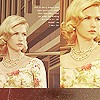
Can somebody please help?, the picture's here. |
  |

 Aug 29 2008, 06:00 PM Aug 29 2008, 06:00 PM
Post
#1
|
|
 Senior Member  Group: Staff Alumni Posts: 4,665 Joined: Aug 2008 Member No: 676,364  |
So, I was wondering, does anybody know how to make an image so clear and crisp like this? It looks so clean! The contrast/brightness is just perfect!
  |
|
|
|


|
Aug 29 2008, 06:03 PM
Post
#2
|
|
 define our lives for us. Group: Staff Alumni Posts: 11,656 Joined: Aug 2004 Member No: 43,293 |
If you're using Photoshop, you can just edit the control/contrast, brightness, curves, etc. And sharpen it for a crisp look? If you don't, care to share what program you do use? If you don't have any, you can probably attempt something like that using Microsoft Word, but it probably won't look that well lol.
|
|
|
|

|
Aug 29 2008, 06:05 PM
Post
#3
|
|
 Senior Member Group: Staff Alumni Posts: 2,435 Joined: Feb 2007 Member No: 506,205 |
Well, a lot of it has to do with the image you start with. If it's blurry or nasty to start off with, it's going to be really difficult to fix.
I just sharpen my images to make them a bit crisper, then I duplicate the layer twice and one to screen and the top to soft light. That usually adds good contrast. |
|
|
|


|
Aug 29 2008, 06:11 PM
Post
#4
|
|
|
Senior Member Group: Staff Alumni Posts: 4,665 Joined: Aug 2008 Member No: 676,364 |
QUOTE(mystline @ Aug 29 2008, 03:03 PM)  If you're using Photoshop, you can just edit the control/contrast, brightness, curves, etc. And sharpen it for a crisp look? If you don't, care to share what program you do use? If you don't have any, you can probably attempt something like that using Microsoft Word, but it probably won't look that well lol. I use Photoshop CS3, and are you serious about the Microsoft Word part?! QUOTE(schizo @ Aug 29 2008, 03:05 PM) Well, a lot of it has to do with the image you start with. If it's blurry or nasty to start off with, it's going to be really difficult to fix. I just sharpen my images to make them a bit crisper, then I duplicate the layer twice and one to screen and the top to soft light. That usually adds good contrast. Mkkay, do you think the example picture was messed around with a Channel Mixer? |
|
|
|
|
Aug 29 2008, 06:14 PM
Post
#5
|
|
|
define our lives for us. Group: Staff Alumni Posts: 11,656 Joined: Aug 2004 Member No: 43,293 |
^ Lol, yes, I'm totally serious, since it has a contrast option thing for pics, where Paint doesn't.
AAAAANDDDDDD, for Photoshop, what I usually do is Layer>New Layer Adjustment>Gradient Map, then select a B&W white. Check preview, and if the pic is b&w, click okay. Set that layer to luminosity. From there, I sharpen, curves (Layer>New Layer Adjustment>Curves). Basically play with everything under the New Layer Adjustment place. :P It's muy helpful. |
|
|
|
|
Aug 29 2008, 06:15 PM
Post
#6
|
|
|
Senior Member Group: Staff Alumni Posts: 2,435 Joined: Feb 2007 Member No: 506,205 |
Well, I don't use Photoshop so I'm not sure if the Channel Mixer works the same as the one in PSP. I don't think it was, though.
Do you have the original image? It's a bit hard to tell what was editted when we don't know what it looked like before. To be honest, it looks like the picture looked that that when it was taken. |
|
|
|
|
Aug 29 2008, 06:19 PM
Post
#7
|
|
|
Senior Member Group: Staff Alumni Posts: 4,665 Joined: Aug 2008 Member No: 676,364 |
QUOTE(mystline @ Aug 29 2008, 03:14 PM) ^ Lol, yes, I'm totally serious, since it has a contrast option thing for pics, where Paint doesn't. AAAAANDDDDDD, for Photoshop, what I usually do is Layer>New Layer Adjustment>Gradient Map, then select a B&W white. Check preview, and if the pic is b&w, click okay. Set that layer to luminosity. From there, I sharpen, curves (Layer>New Layer Adjustment>Curves). Basically play with everything under the New Layer Adjustment place. :P It's muy helpful. Oh okay, thanks for the advice, I needed it. :D QUOTE(schizo @ Aug 29 2008, 03:15 PM) Well, I don't use Photoshop so I'm not sure if the Channel Mixer works the same as the one in PSP. I don't think it was, though. Do you have the original image? It's a bit hard to tell what was editted when we don't know what it looked like before. To be honest, it looks like the picture looked that that when it was taken. No, I don't sorry. :( I think it was blurry and dark before it was edited. Does that help? |
|
|
|
|
Aug 29 2008, 06:23 PM
Post
#8
|
|
|
Senior Member Group: Staff Alumni Posts: 2,435 Joined: Feb 2007 Member No: 506,205 |
I would just recommend messing around with layers. Setting a duplicated layer to screen makes it brighter, soft light gives it more contrast, etc.
|
|
|
|
|
Aug 29 2008, 06:25 PM
Post
#9
|
|
|
Senior Member Group: Staff Alumni Posts: 4,665 Joined: Aug 2008 Member No: 676,364 |
QUOTE(schizo @ Aug 29 2008, 03:23 PM) I would just recommend messing around with layers. Setting a duplicated layer to screen makes it brighter, soft light gives it more contrast, etc. Okay, the problem is resolved! Thanks schizo & mystline! |
|
|
|
|
Aug 29 2008, 06:25 PM
Post
#10
|
|
|
Senior Member Group: Staff Alumni Posts: 2,435 Joined: Feb 2007 Member No: 506,205 |
No problem.
Topic closed and moved to resolved. |
|
|
|
|
1 User(s) are reading this topic (1 Guests and 0 Anonymous Users)
0 Members: