Transparent baaaaaaar.., with a twist ? |

 Feb 20 2007, 03:23 AM Feb 20 2007, 03:23 AM
Post
#1
|
|
 define our lives for us.  Group: Staff Alumni Posts: 11,656 Joined: Aug 2004 Member No: 43,293  |
I'm looking for something similar to this : http://www.createblog.com/tutorials/download.php?id=597
but not exactly. And yeah, for Photoshop. I want it like that exact transparent bar, but not all the way across the image, and no top & bottom border. In like just fits for the word and then it fades out.. You know? ^^" If you don't, I'll try to find some examples. |
|
|
|


 |
Replies
(1 - 11)
|
Feb 20 2007, 08:58 AM
Post
#2
|
|
 vengeance. Group: Official Member Posts: 3,058 Joined: Jul 2006 Member No: 437,024 |
Providing example would be best if you don't mind.
|
|
|
|

|
Feb 20 2007, 09:13 PM
Post
#3
|
|
 You'll find me in your dreams. Group: Official Member Posts: 8,536 Joined: Mar 2005 Member No: 114,010 |
... It's exactly the same, but wherever.
But then you use the rectangular selection tool (with about 50px feather) and delete the ends. ... That is what you were asking, right Toby? |
|
|
|

|
Feb 20 2007, 09:28 PM
Post
#4
|
|
 Onyi eff. babii Group: Member Posts: 529 Joined: Aug 2005 Member No: 204,660 |
just dont make then rectangle go all the way across the photo
|
|
|
|


|
Feb 21 2007, 11:06 PM
Post
#5
|
|
 Senior Member Group: Staff Alumni Posts: 7,025 Joined: Feb 2004 Member No: 4,051 |
^That isn't what they're asking. If you aren't going to contribute to the topic, please don't post in it.
A layer mask would be much neater then using the lasso tool. Create your bar however you want it to look then. I would reccomend doing the bar to the end of the picture, it will make the fading smoother. Make sure you have the right layer selected, and got to Layer >> Add Layer Mask >> reveal all. Then click on the gradient tool (while the layer mask is still selected, the picture next to the layer icon should be outlined in blue) Make the foreground white and the background black on your color toolbar. Start where you want the fade to start, and end where you want the fade to end with the gradient tool. This will create a fade. If you need me to do a post with pictures, let me know. I'm not good at explaining things, sorry. |
|
|
|

| *Intercourse.* |
Feb 21 2007, 11:22 PM
Post
#6
|
|
Guest |
Why not just use the Rectangle tool and set it to white and go across the spot you would like to have the bar at and then just change the opacity of the layer? Or you an try the other shapes...
Or well i think thats the part your talking about 
|
|
|
|
|
Feb 22 2007, 12:59 PM
Post
#7
|
|
|
Senior Member Group: Staff Alumni Posts: 7,025 Joined: Feb 2004 Member No: 4,051 |
She's asking how to fade it at the end^
|
|
|
|
|
Feb 22 2007, 09:01 PM
Post
#8
|
|
|
Onyi eff. babii Group: Member Posts: 529 Joined: Aug 2005 Member No: 204,660 |
gypsy shut the f**k up. she wasnt so clear in the way she explained it. so me nd intercourse thought something different u f**king idiot!
|
|
|
|
| *Azarel* |
Feb 22 2007, 09:14 PM
Post
#9
|
|
Guest |
QUOTE(carnelliz2sexy @ Feb 22 2007, 6:01 PM)  gypsy shut the f**k up. she wasnt so clear in the way she explained it. so me nd intercourse thought something different u f**king idiot! The name calling is completely uncalled for. Also, you were verbally warned a little over two weeks ago for needlessly posting and not contributing to the topic; because it was over two weeks ago, it expired. This is your official verbal warning for both bashing and spamming.QUOTE(micron @ Jan 26 2004, 5:18 PM) PERSONAL ATTACKS
Flaming, trolling, member bashing-you name it-will not be tolerated here. If you're making an argument, it's always better to retort with reason and composure. Personal attacks are childish and have no place in these forums. |
|
|
|
|
Feb 26 2007, 08:48 PM
Post
#10
|
|
|
define our lives for us. Group: Staff Alumni Posts: 11,656 Joined: Aug 2004 Member No: 43,293 |
wtf.
haha. Sorry, I totally forgot I made this topic. >_> But yeah, kind of like what reili said. But if I do that, it deletes part of the image too.. Because in the tutorial, it doesn't say anything about making a new layer so I wouldn't know how to do it without a new layer. Anywaym this is sorta what I'm talking about: 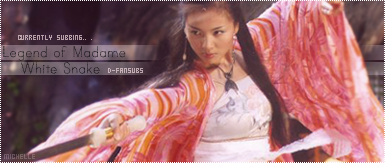 I tried what reili said and tried to make it on a new layer, but I think I totally phailed. This is what I came out with;  ummmmmmmmmm.. yeeeeah. the opacity is also really low because if it were any brighter, it'd look really messed up. o_O |
|
|
|
|
Feb 26 2007, 09:18 PM
Post
#11
|
|
|
Onyi eff. babii Group: Member Posts: 529 Joined: Aug 2005 Member No: 204,660 |
came out nice. how did you get that dotted edge?
|
|
|
|
|
Feb 27 2007, 02:08 PM
Post
#12
|
|
|
vengeance. Group: Official Member Posts: 3,058 Joined: Jul 2006 Member No: 437,024 |
^ Those are just examples.
Toby, why not try and making it on a new layer, then taking a soft brush and slightly delete the edges? |
|
|
|
 |
1 User(s) are reading this topic (1 Guests and 0 Anonymous Users)
0 Members: